Connection settings
The tenant ID, the client ID, and the connection test
An app registration in the Microsoft Entra admin center is required. If you have not registered an app yet, follow the app registration steps first.
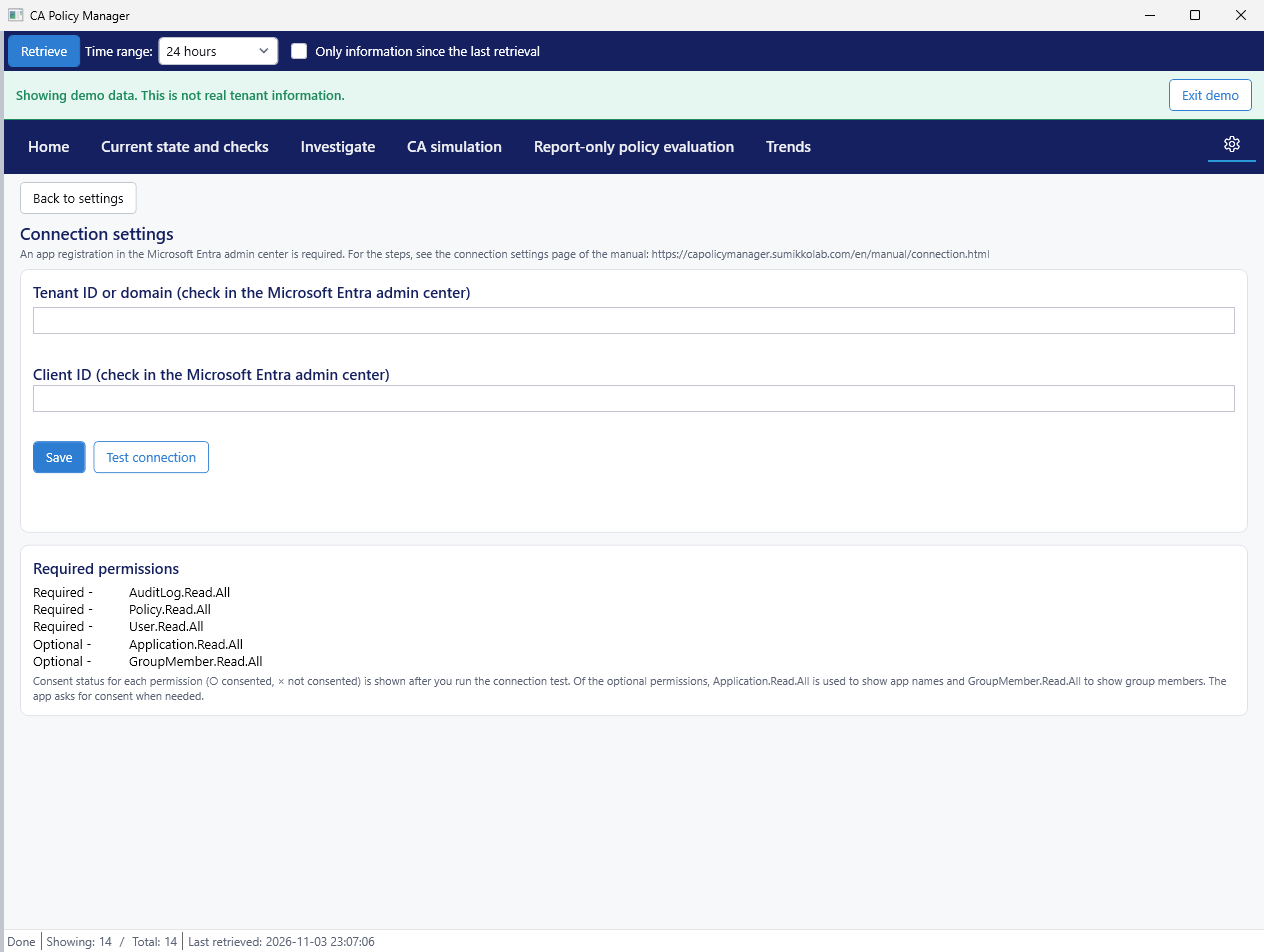
Steps
- Select the gear icon to open Settings, then select Connection settings.
- In Tenant ID or domain, enter the tenant ID or a domain name.
- In Client ID, enter the client ID of the registered app in GUID form.
- Select Save. No restart is needed.
- Select Test connection and sign in. The app reads the policy definitions once and shows the result.
The tenant ID and the client ID are stored encrypted on this PC.
Consent status of the permissions
After the connection test, the app shows the consent status of each required permission: ○ means consented and × means not consented. Optional permissions are not part of the test. Application.Read.All is used to show app names and GroupMember.Read.All to show group members; the app asks for consent when they are needed.
Connection test results
| Message | What to do |
|---|---|
| Connected | Select Retrieve on Home. |
| Sign-in did not complete | Check the tenant ID and the client ID. |
| Permission or consent is missing | Ask an administrator to grant consent. |
| The network could not be reached | Check the network connection. |
| The service is busy | Try again in a while. |
| The connection could not be confirmed | Check your input and try again. |
Last updated: 2026-11-03